
DPMO (Sigma Level) Calculator Tutorial
The DPMO Calculator is a tool for summarizing process performance in defects per million opportunities (DPMO). A defect is a failure to meet a specific requirement. Each requirement you evaluate is a defect opportunity. The DPMO Calculator also reports corresponding sigma levels and was previously called the Sigma Level Calculator.
Tutorial
The tutorial demonstrates how to calculate DPMO from defect counts, combine results across products, and enter an existing DPMO value. The instructions below also cover estimates from continuous-data summary statistics.
When to use this tool
Use the DPMO Calculator to summarize process performance when each product or transaction can have several different defects. A defect is a failure to meet a specific requirement. A single unit can have multiple defects. A defective unit has at least one defect: a unit with two defects is still only one defective unit. Counting only defective units hides how many requirements were missed.
Each requirement you evaluate is a defect opportunity. This calculator accounts for both the number of defects and the opportunities evaluated, expressing the result as defects per million opportunities (DPMO).
For example, use counts of packaging defects found during manufacturing inspections, errors in customer invoices, or missing and incorrect information in medical appointment registrations. In each case, you need the number of defects, the number of units reviewed, and the number of defined opportunities per unit.
For each product or process included in the analysis, use the same definitions of a defect and a defect opportunity, and apply the same checks to every unit evaluated. This consistency refers to what you count and how you inspect, not to defect severity. DPMO counts each defect equally, so assess the severity of defects separately.
Have the original measurements and specification limits? Start with Process Capability Analysis or the appropriate Non-Normal Capability Tool to assess stability, distribution, and capability. Use the DPMO Calculator to calculate a defect rate from counts of defects, units, and opportunities per unit. If you have only a mean, standard deviation, and specification limits, it can also estimate DPMO by assuming the measurements follow a normal distribution.
How to use this tool in EngineRoom
- Select Measure > Process Capability > DPMO Calculator in the DMAIC menu. You can also enter “DPMO” in “Find Tool.”
- Open the calculator and use “Max View” if you need more space.
- Use “Discrete Data” for defect counts or an existing DPMO value. Use “Continuous Data” for a mean, standard deviation, and specification limits.
Dropzones
This template uses direct entry. There are no variable dropzones, and you do not need to upload a data source.
Options
Enter numbers without commas in all input boxes. For example, type 10000 rather than 10,000.
Discrete Data: Enter up to three products or processes in the “Product A,” “Product B,” and “Product C” columns. Leave unused columns blank. Choose one input method for each product.
- Manual entry: Click a count-entry cell and enter the following:
- Number of defects: The total defects found.
- Number of units: The total units inspected. Use a value greater than zero.
- Number of opportunities per unit: The defined opportunities evaluated on each unit. Use a value greater than zero that applies to every unit in that product’s entry.
- Summary entry: If you already know DPMO, click “Or Enter DPMO directly” and enter the value. This displays that DPMO and calculates the corresponding sigma levels.
Clicking a count-entry cell makes the direct-DPMO cell gray. Clicking the direct-DPMO cell makes the three count cells gray. The selected input method determines which values are used. Results update automatically when the required values are present.
Continuous Data: Use this section for a normal-model estimate when you have summary statistics. If you have the original measurements, follow the process capability guidance above first.
- Enter Average (X-bar), the mean of the process measurements, in “Enter the calculated average, X-bar.”
- Enter Standard deviation (s), the spread of those same process measurements, in “Enter the calculated standard deviation, s.” Use a value greater than zero, in the same units as the mean and limits.
- Enter the Upper specification limit and/or Lower specification limit. These are the acceptance limits established for the characteristic. Leave a nonexistent limit blank. Enter zero only if zero is the actual specification limit. At least one limit is required.
Use a mean and standard deviation representative of the same process and period. Specification limits express requirements. They are not control limits calculated from the data.
Output
Calculated DPMO: For discrete counts, this is the observed number of defects divided by the number of evaluated opportunities, scaled to one million. For a directly entered value, it repeats that DPMO. Use this result as the primary performance summary.
Total: Combines the defects and opportunities for the products entered from counts. It uses each product’s number of units and opportunities per unit, so it is not a simple average of the product DPMOs. The opportunities-per-unit total is a weighted average. If any product uses direct DPMO entry, the Total results are blank because the calculator does not have its denominator.
Continuous-data results: The calculator estimates the percentage above the upper limit, the percentage below the lower limit, the percentage within specifications (yield), and DPMO using a normal distribution. It also reports the distance from the mean to each specified limit in standard deviation units (Z scores). These are model-based estimates, not a count of observed out-of-specification measurements.
Long term sigma level (Z) and Short term sigma level (Z + 1.5): These express the defect rate on a normal-equivalent scale. The conventional 1.5-sigma adjustment is used to estimate a short-term sigma level when the collected data include all sources of long-term variation. The calculator reports the adjusted value automatically. It does not verify this assumption or measure a shift in your process.
Example 1: Summarize defects across two products
A manufacturer inspects boxed maintenance kits (Product A) and refill pouches (Product B). Each kit is checked for a correct label, an intact seal, and complete contents, giving three opportunities per kit. Each pouch is checked for a correct label and an intact seal, giving two opportunities per pouch. During one month, inspectors record 264 defects across 10,000 kits and 34 defects across 1,000 pouches. Which process performs better when defects are compared per opportunity?
- Under “Product A,” enter 264 defects, 10000 units, and 3 opportunities per unit. “Calculated DPMO” is 8,800.
- Under “Product B,” enter 34 defects, 1000 units, and 2 opportunities per unit. “Calculated DPMO” is 17,000.
- Read the “Total” column: 298 defects, 11,000 units, a weighted average of approximately 2.90909 opportunities per unit, and 9,312.5 DPMO.
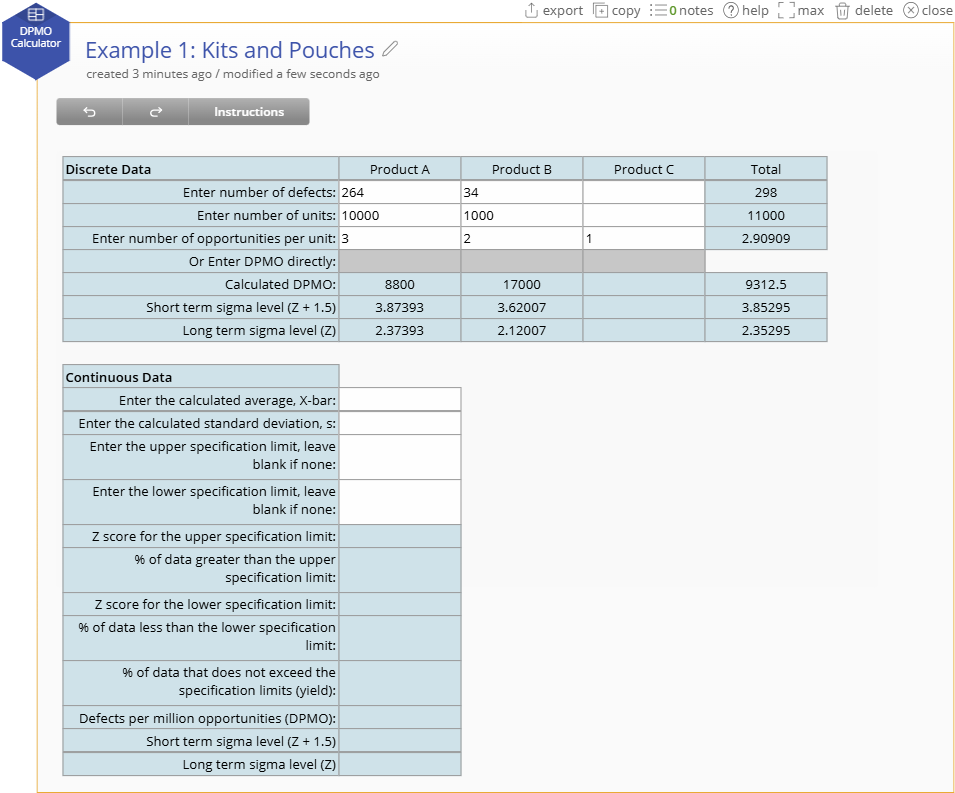
The kits have more total defects (264 versus 34), but the pouches have the higher DPMO (17,000 versus 8,800). DPMO accounts for the different numbers of inspected units and opportunities, making it more useful than total defects alone for comparing these results.
Enter a known DPMO
The manufacturer also receives a supplier’s inspection summary for replacement cartridges (Product C), reported as 1,500 DPMO without the underlying counts. Click “Or Enter DPMO directly” under “Product C” and enter 1500. Its calculated DPMO remains 1,500, and the calculator reports the corresponding sigma levels. The “Total” results become blank.
Do not average 8,800, 17,000, and 1,500 to estimate a combined rate. Obtain Product C’s defect and opportunity counts if a combined result is needed.
Example 2: Estimate DPMO from continuous summary statistics
A supplier’s monthly report summarizes the thickness of a protective coating on metal parts: a mean of 25 micrometers and a standard deviation of 2 micrometers. The customer’s specification allows thicknesses from 15 to 30 micrometers. You have the summary report but not the individual measurements. For this example, assume a normal distribution is appropriate and the summaries represent the process. What is this process’s estimated DPMO?
- In “Continuous Data,” enter 25 for the average and 2 for the standard deviation.
- Enter 30 for the upper specification limit and 15 for the lower specification limit.
- Read the results: approximately 6,210 DPMO, 99.38% yield, 0.62% above the upper limit, and a very small percentage below the lower limit that rounds to 0% on screen.
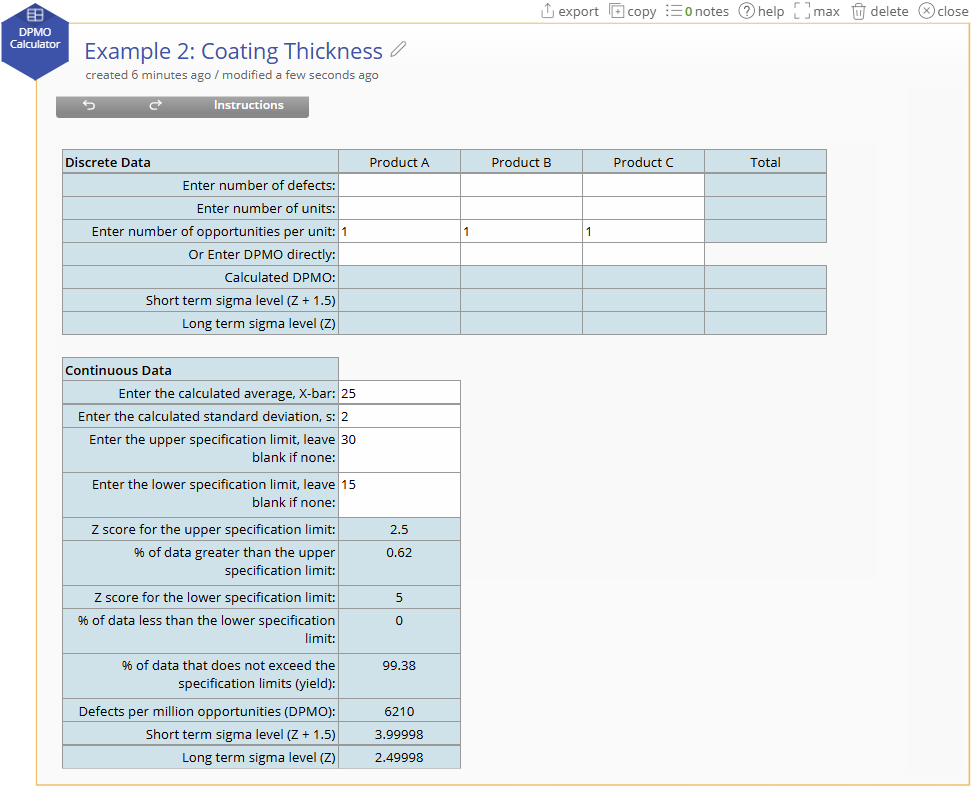
The model estimates that about 6,210 per million parts would fall outside the coating-thickness specification, almost all because the coating is too thick. Each part has one opportunity to fail this thickness requirement, so DPMO also represents the estimated parts per million outside specification.
Frequently Asked Questions
Is DPMO the same as the percentage of defective units?
No. DPMO counts defects relative to opportunities. A unit can fail more than one opportunity. DPMO ÷ 10,000 gives defects per 100 opportunities. It does not generally give the percentage of units with at least one defect. To report unit-level yield, you need the number of units with no defects or an explicitly justified probability model.
Why is my Total column blank?
The calculator needs count inputs for every product included in the total. If any product uses direct DPMO entry, the total cannot be calculated. Unused product columns can remain blank.
Does zero DPMO mean the process cannot produce defects?
No. With count inputs, zero DPMO means no defects were observed in the evaluated opportunities. The amount of inspection still matters. Report the sample size and avoid interpreting a finite sigma value at zero DPMO as proof of perfect or unlimited capability.
Can I compare any two processes using DPMO?
Only with care. The opportunity definitions, inspection coverage, defect detection, and severity should be comparable. Review each product’s results as well as the total: a changing product mix can change the combined DPMO even when the individual product rates are unchanged.
What if one opportunity can have multiple occurrences of the same defect?
Clarify the counting model before calculating DPMO. If you are counting repeatable events per unit of exposure, a defects-per-unit rate or Poisson analysis may be more appropriate. A count greater than the defined number of opportunities cannot be interpreted as a failure probability for the sigma conversion.
Under the hood
DPMO from discrete counts
Let D be the observed defect count, N the number of units evaluated, and O the opportunities evaluated per unit. Then:
This calculation describes the recorded data. It does not require normality, independence among opportunity outcomes, or a 1.5-sigma shift. Inference about future performance requires additional assumptions and representative sampling. The calculator does not calculate a confidence interval.
Combining products
For products indexed by i, combine the defect counts and the evaluated opportunities:
Here Ō is the weighted average number of opportunities per unit.
Equivalently, the combined DPMO is an average of the product DPMOs weighted by total opportunities. The calculation uses the total opportunities before rounding the displayed weighted average.
DPMO from continuous summaries
Let x̄ be the entered mean, s the entered standard deviation, LSL the lower specification limit, and USL the upper specification limit. Let Φ be the standard normal cumulative distribution function. Under the model X ~ Normal(x̄, s²):
With a one-sided specification, the absent tail contributes zero. The displayed Z scores are (USL − x̄) ÷ s and (x̄ − LSL) ÷ s. A mean and standard deviation alone do not establish normality or stability. The normal-model assumption is essential to these tail estimates.
Converting a defect rate to sigma level
Let p = DPMO ÷ 1,000,000. The conventional normal-equivalent score is:
Here Φ⁻¹ is the inverse standard normal cumulative distribution function. For the non-boundary, low-defect-rate examples in this article, the calculator reports Z as “Long term sigma level (Z)” and Z + 1.5 as “Short term sigma level (Z + 1.5).”
The conventional 1.5-sigma adjustment is used when the collected data include all sources of long-term variation. Adding 1.5 to the long-term Z estimates a short-term sigma level under this convention. The adjustment is not a shift estimated from your data, and it does not change DPMO. The calculator applies it automatically, so you must decide whether the long-term variation assumption fits the data you collected.
For continuous data with two specification limits, Z is calculated from the combined probability in both tails. It is generally different from either individual specification-limit Z score. For discrete counts, the normal-equivalent conversion does not imply that the original counts follow a normal distribution.
At p = 0 or p = 1, the mathematical inverse normal is unbounded. The calculator uses finite endpoint substitutions and truncation rules for sigma output, including at very high defect rates. Interpret the underlying DPMO and amount of data rather than treating these adjusted sigma values as capability evidence.
Was this helpful?